Exercise 2: Terra Draw implementation with UI interactions
Let's create a basic Terra Draw setup with more modes and UI buttons. Update your src/routes/+page.svelte:
Add point, line and polygon modes
Here, we can add basic point, linestring, polygon modes with buttons and clear button to remove all features.
Firstly, import TerraDrawPointMode, TerraDrawLineStringMode and TerraDrawPolygonMode in script tag. Note that we are removing TerraDrawRectangleMode from the imports.
Then, update the declaration of the draw variable. By using $state(), the variable becomes reactive.
import {
    TerraDraw,
    TerraDrawPointMode,
    TerraDrawLineStringMode,
    TerraDrawPolygonMode
} from 'terra-draw';

let draw: TerraDraw | undefined = $state();
Update the modes: array in the initialization of TerraDraw object to include the new drawing modes.
draw = new TerraDraw({
    adapter: new TerraDrawMapLibreGLAdapter({ map }),
    modes: [
        new TerraDrawPointMode(),
        new TerraDrawLineStringMode(),
        new TerraDrawPolygonMode()
    ]
});
Then, remove draw.setMode("rectangle"); from the last section so that we don't automtaically start with any drawing tool.
onMount(() => {
    map.once('load', () => {
        // Start drawing
        draw.start();
-        draw.setMode("rectangle");
    })
})
Add methods
Add two methods just before the closing script tag, outside the closing brackets of the onMount() function.
const handleModeClick = (mode: string) => {
    draw?.setMode(mode);
};

const handleClearClick = () => {
    draw?.clear()
};
Add buttons
Add buttons to HTML section of component by replacing the existing <asside> tag in the template.
<aside class="sidebar">
    <!-- Use this space for adding additional elements for workshop -->
    <button onclick={() => handleModeClick('point')}>Point</button>
    <button onclick={() => handleModeClick('linestring')}>Line</button>
    <button onclick={() => handleModeClick('polygon')}>Polygon</button>
    <button onclick={handleClearClick}>Clear</button>
</aside>
When a mode button is clicked, handleModeClick function is called and set a corresponding mode to draw instance.
You can draw a point, a line and a polygon after clicking the button. Click clear button, you can remove all features.
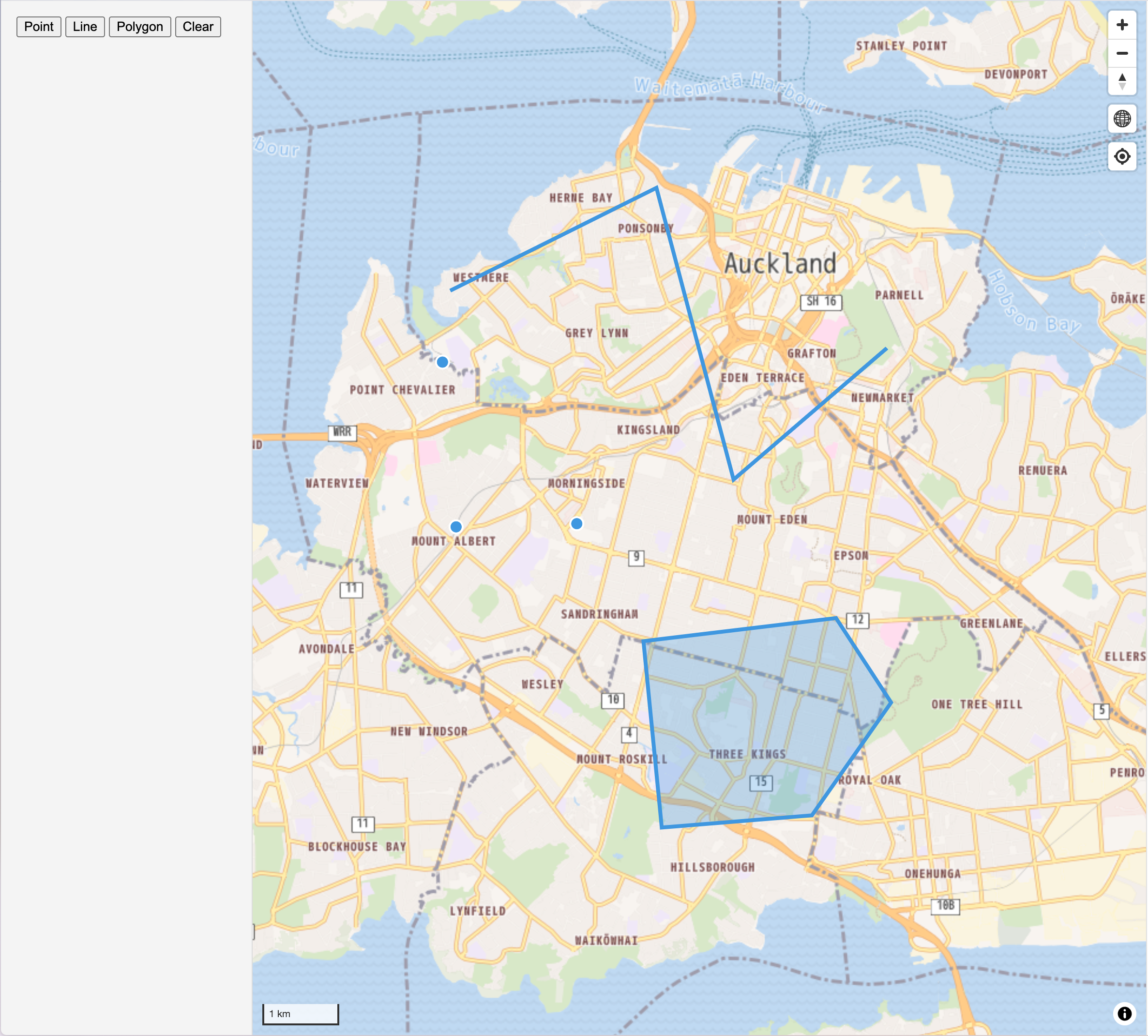
Testing Your Implementation
- Save your changes and the Vite development server should automatically reload
- Open your browser to
http://localhost:5173 - Test drawing - click corresponding buttons to create points, lines and polygons
- Remove features - click
clearbutton to remove features.
If you have time, please also try to add other Terra Draw modes to the example.
Example code
The above example code is available at example/with-point-line-polygon branch.
What's Next?
Now you can add / remove points, lines and polygons. Let's do learn how to select a feature and modify them next.